CMS for Harmony widgets live under Installed Apps in the editor. You can place the same widget more than once on a page (or across pages) — each instance has its own settings.
Before you start: Install CMS for Harmony on the site. See Getting started if you have not set up a collection yet.
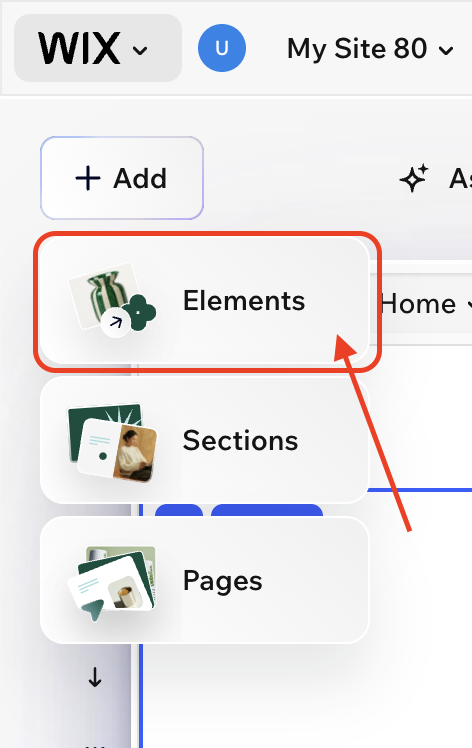
1. Open Elements
- Open your site in the Wix editor (Harmony, Studio, or Classic).
- Click + Add.
- Choose Elements.
2. Open Installed Apps
In the Add Elements panel, open Installed Apps in the left sidebar (scroll if needed — it sits near the bottom of the list).
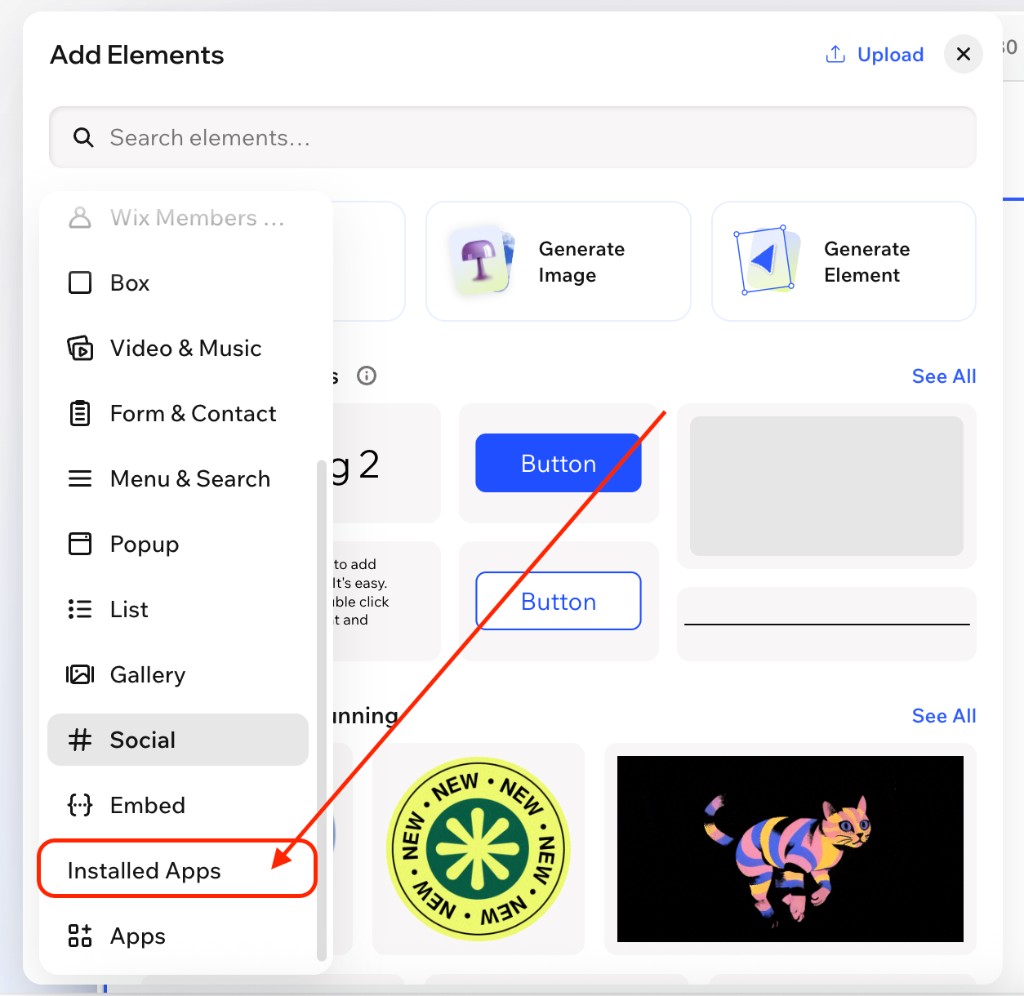
3. Drag a CMS for Harmony widget
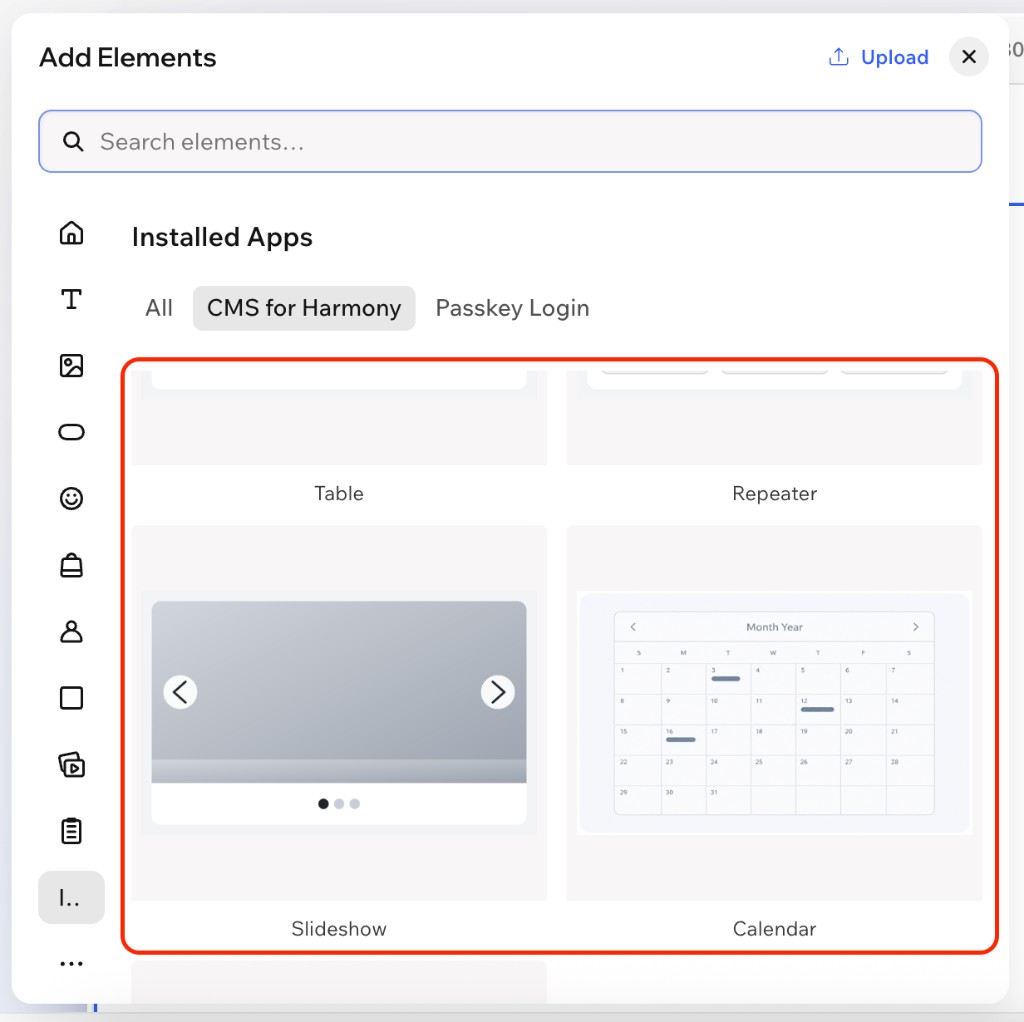
- Select the CMS for Harmony tab (or filter) under Installed Apps.
- Drag any widget onto the page — for example Table, Repeater, Slideshow, Media Gallery, Calendar, Chart, or Form.
- Select the widget and open Settings to connect a collection and configure it.
Video tutorial — Repeater widget
Walkthrough for adding Repeater from Installed Apps and connecting a collection:
Add the same widget more than once
You can drag the same widget onto the page again whenever you need another instance. Each copy is independent — different collections, columns, filters, or layouts.
Dynamic Page
Dynamic Page is added the same way, then placed on a native Wix collection page (More actions → Add collection page). Details: Dynamic Page and How to set up Dynamic Pages.
Next steps
- Getting started — install and first connection
- Add collections — model fields and permissions
- Widget guides: Table · Repeater · Slideshow · Media Gallery · Calendar · Chart · Form · Dynamic Page
- Optional: AI setup to configure a widget from a short description
FAQ
How do I add a CMS for Harmony widget?
Add → Elements → Installed Apps → CMS for Harmony, then drag a widget onto the page.
Can I add the same widget more than once?
Yes. Use multiple instances for different collections or layouts on the same site.
Which widgets support search and filters?
Table, Repeater, Calendar, Chart, Media Gallery, and Slideshow.